


Converting written text into MP3 audio is one of the most effective ways to repurpose blog articles, produce podcast episodes, create YouTube voiceovers, and generate study materials. MP3 is the world's most universal audio container — compatible with every smartphone, car audio system, smart speaker, and video editor. In this tutorial, we examine the complete workflow for converting text to MP3 online for free, optimizing speech pacing, and exporting broadcast-grade audio tracks.
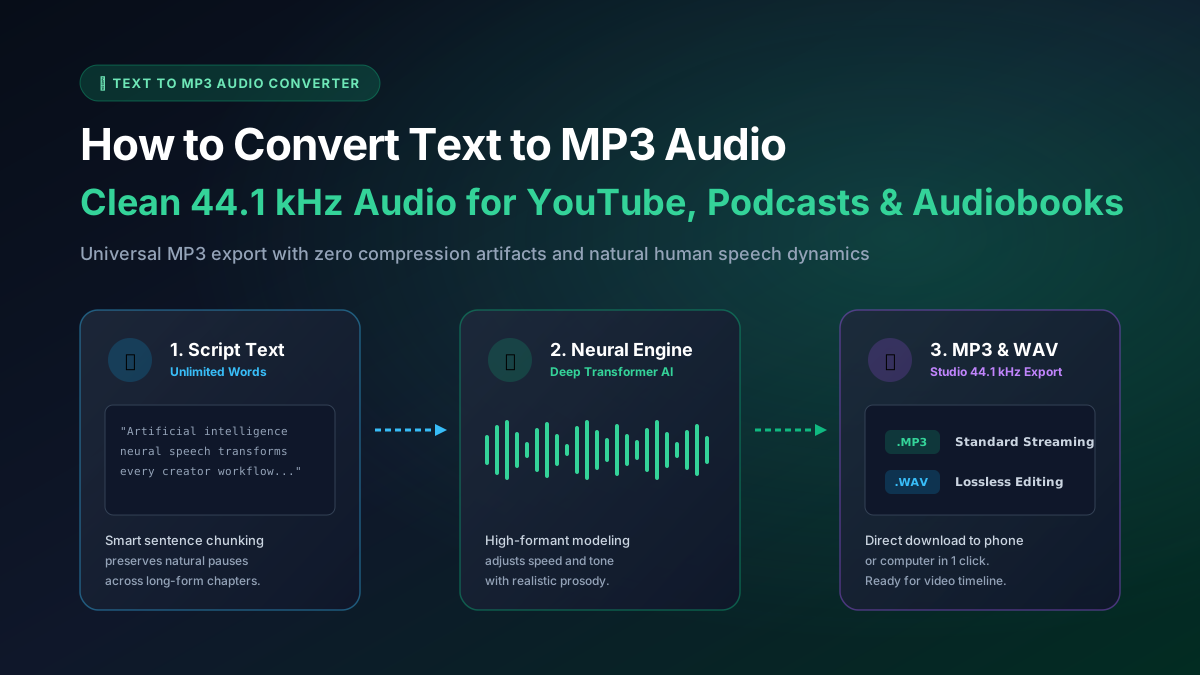
Key Takeaways: How to Convert Text to MP3 Audio for YouTube, Podcasts, and Audiobooks
- MP3 files offer the ideal combination of pristine vocal fidelity and compact file size, making them perfect for streaming and downloads.
- ToolSphare converts text directly into 44.1kHz MP3 audio without requiring secondary encoding or third-party converter utilities.
- You can adjust playback rate between 0.5x and 2.0x, allowing you to tailor speech pacing for fast explainers or relaxed audiobooks.
- WAV export is also available when you need uncompressed, lossless audio for multi-track editing in Premiere, Final Cut, or Audacity.
- Punctuation, paragraph breaks, and spelling out abbreviations maximize vocal clarity and natural prosody.
Why MP3 Is the Gold Standard Audio Format for Spoken Voice
While uncompressed formats like WAV are popular in professional recording studios, MP3 remains the universal standard for spoken audio distribution. A one-hour speech recording in lossless WAV format can easily exceed 600 megabytes, whereas an MP3 version at 128 kbps takes up only 55 megabytes with zero perceptible loss in vocal clarity.
Every major video editing tool (Premiere Pro, DaVinci Resolve, CapCut, Final Cut Pro), social media platform (YouTube, TikTok, Instagram), and podcast host supports MP3 natively. Generating your voiceovers directly as MP3 saves hours of conversion time.
How to Convert Text to MP3 in 4 Simple Steps
Step 1 — Prepare Your Script: Write or paste your script into ToolSphare Text to Voice. Review your text for correct spelling and insert commas where you want the narrator to take a natural breath.
Step 2 — Select Voice & Adjust Speed: Pick a voice speaker matching your audience. For energetic social media videos, bump the speed to 1.15x or 1.2x. For complex tutorials, leave it at 1.0x or lower it to 0.95x.
Step 3 — Hit Generate Voice: Click "Generate Voice" or press Ctrl + Enter. In seconds, your text is transformed into speech.
Step 4 — Download MP3 Audio: Click the green "Download MP3" button to save your file. You can import it directly into your video editor or transfer it to your phone.
Importing AI MP3 Voiceovers into Video Editors (CapCut, Premiere, DaVinci)
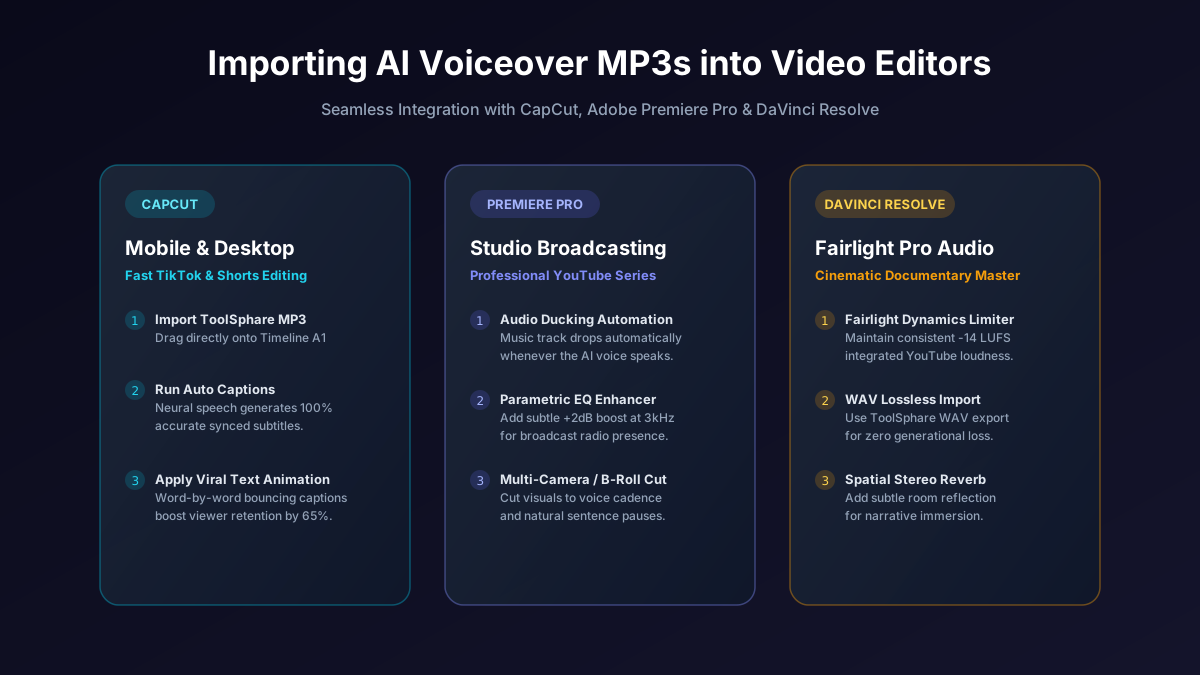
Once you download your MP3 speech track, incorporating it into video content is effortless:
• In CapCut: Click "Import" and drag your MP3 onto the audio timeline. Use the "Auto Captions" feature to automatically generate synchronized subtitles matching the neural voice!
• In Premiere Pro: Place the MP3 on Track A1, add your background music on Track A2, and apply an "Audio Ducking" effect so the background music automatically dips when the voice speaks.
• In DaVinci Resolve: Use the Fairlight audio page to apply a gentle compressor and limiter to ensure maximum vocal punch and clarity across mobile speakers.
Creating Audiobooks and Audio Articles with Unlimited Length Chunking
Long-form reading projects often overwhelm basic speech generators. When you attempt to convert a 3,000-word article or a book chapter on legacy websites, the process crashes or times out.
ToolSphare's text to voice generator features an intelligent sentence chunking engine. It analyzes sentence boundaries, synthesizes each section sequentially, and stitches the audio buffers together into a single, cohesive MP3 track. You get a continuous narration ready for your podcast feed or audiobook library.
How to Convert Text to MP3 Audio for YouTube, Podcasts, and Audiobooks FAQs
How do I save speech as an MP3 file on my computer or phone?
Type your text, click "Generate Voice", and once the preview player appears, click "Download MP3". The file will download immediately to your device.
Can I also export uncompressed WAV audio?
Yes. Next to the Download MP3 button, click "WAV" to export uncompressed, lossless audio suitable for DAW editing.
Is there any watermark or audio tag in the MP3?
No. All downloaded MP3 files are 100% clean and free of watermarks or voice tags.
What sample rate and audio quality is the MP3?
The MP3 audio is generated at 44.1kHz studio broadcast quality with crystal-clear high-frequency vocal reproduction.
More Kılavuzlar Articles
Denemeye hazır mısın?
Öğrendiklerinizi uygulamak için ToolSphare'in ücretsiz yardımcı programlarını kullanın; kayıt olmanıza gerek yok, tarayıcınızda anında sonuçlar alın.
