
Free Laptop to iPhone File Transfer
Need to move photos, PDFs, or documents from your Windows or Mac laptop to an iPhone without a cable? ToolSphare offers a simple room-based file transfer: create a temporary link on your computer, open it in Safari on your iPhone, and upload or download files both ways. No app install, no Apple ID, no iCloud setup — just a browser on each device.
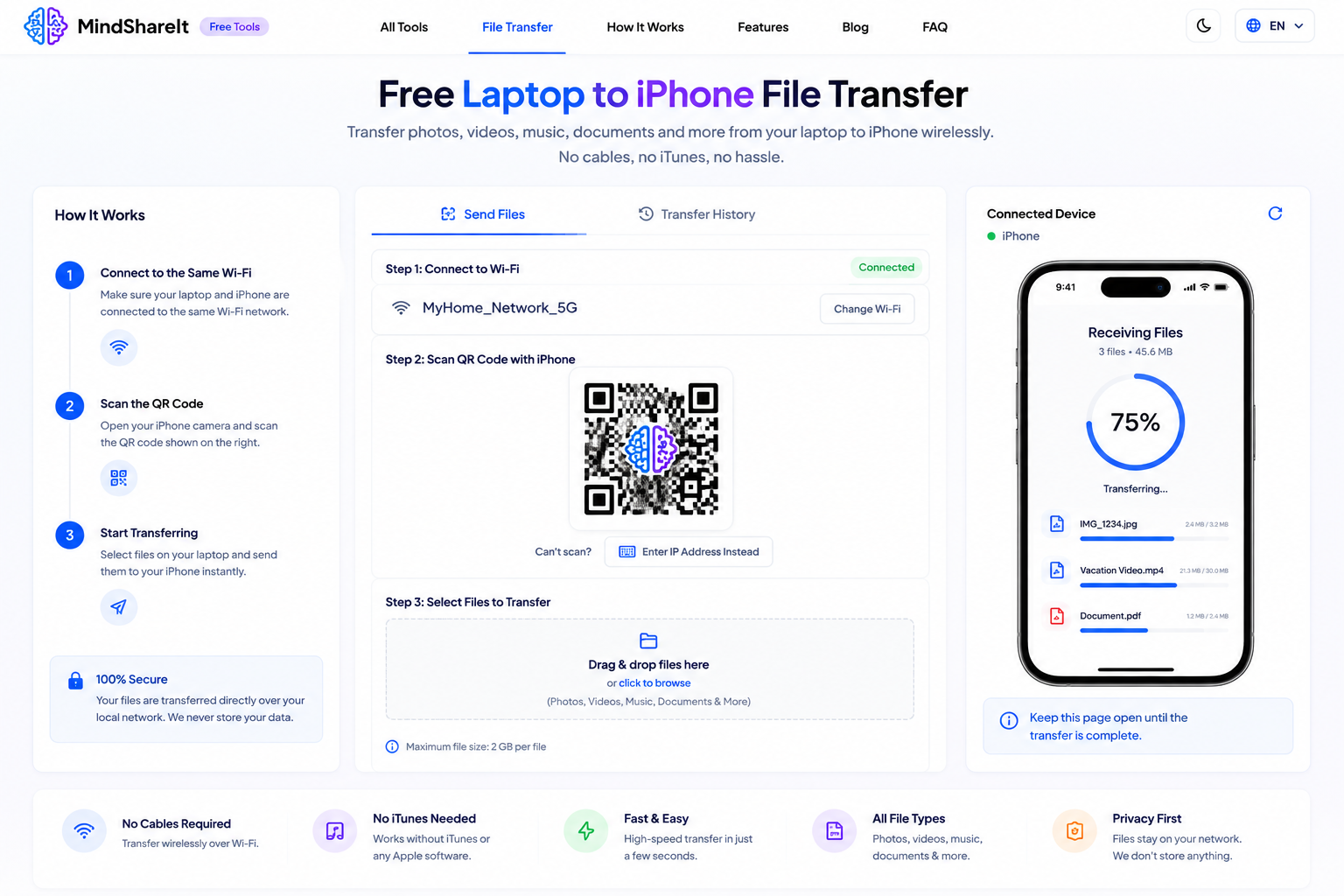
How to Use
- On your laptop, click Create room and note the 6-letter room code, share link, or QR code.
- On your iPhone, open Safari and visit the share link (or scan the QR code with the Camera app).
- Upload files from either device — select multiple files at once (up to 200 MB each).
- On the other device, tap Refresh if needed, then Download next to each file.
- Rooms expire automatically after 2 hours; files are deleted from our server.
Features
- Works laptop ↔ iPhone in both directions
- QR code for quick iPhone access
- No USB cable or iTunes required
- No account or app install
- Files auto-delete after 2 hours
- Up to 200 MB per file, multiple files supported
What Laptop to iPhone File Transfer Does
Laptop to iPhone File Transfer helps you finish laptop to iphone file transfer without installing desktop software. Open the widget above, add your input, and get a clean result directly in your browser.
The workflow stays short on purpose: start, process, and save. That is useful when you need a quick result and do not want an account wall.
How to use Laptop to iPhone File Transfer
Add your file or text, choose any options you need, run the tool, then download or copy the output. Most jobs finish in seconds on a normal connection.
If something looks off, try a clearer input or a smaller sample. You can also switch to a related ToolSphare Utility Tools tool when the next step is a different task.
Free to use with no sign-up
Laptop to iPhone File Transfer is free for everyday laptop to iphone file transfer work. There is no email gate and no install requirement for the core workflow.
Use it on desktop or mobile when you need free laptop to iphone file transfer online, then leave as soon as the job is done.
Why people choose Laptop to iPhone File Transfer
Laptop to iPhone File Transfer focuses on a clean browser workflow instead of a heavyweight app. You get a practical result for laptop to iphone file transfer without creating an account.
If you already use other Utility Tools tools, stay on ToolSphare and move between related utilities without bouncing across different sites.
Tips before you start
Use the clearest source file or text you have, especially when quality or formatting matters. Try the default result first, then adjust settings only if you need a different output.
For privacy, prefer tools that can stay in the browser when possible, and avoid uploading highly confidential material to any web app.
Practical tips for Laptop to iPhone File Transfer
Before you start, keep your source ready and decide what “done” looks like — a downloaded file, copied text, or a converted format. Laptop to iPhone File Transfer works best when the input is clear and complete.
If the first result is close but not perfect, adjust one setting at a time and compare again. That is usually faster than restarting from scratch.
Frequently Asked Questions
Do both devices need the same Wi‑Fi?
No. Both devices only need internet access and a browser. Same Wi‑Fi is fine but not required.
Is it safe?
Files are stored temporarily in an encrypted room and removed after 2 hours. Do not use for highly sensitive data.
What file types are supported?
Most common types: photos, PDFs, videos, ZIP, documents. Executable and script files are blocked.
Why did my room expire?
Rooms last 2 hours for privacy. Create a new room if yours expired.
Can I upload multiple files?
Yes. Select multiple files in the upload picker on laptop or iPhone. Each file can be up to 200 MB.
